
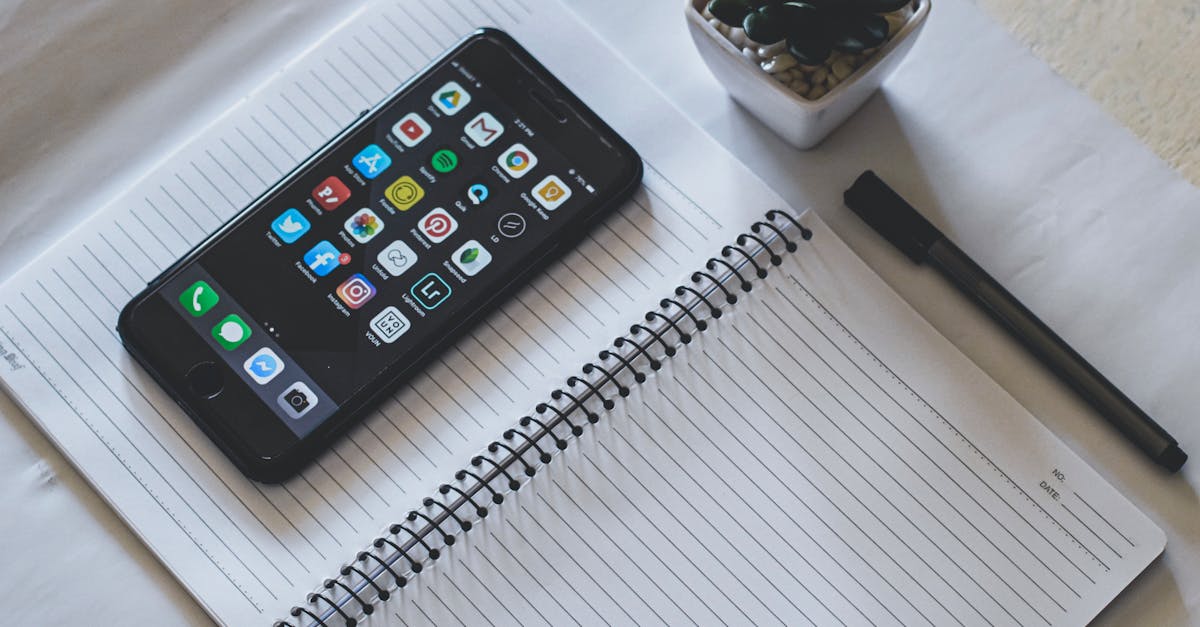
Ever looked at your iPhone and thought, “This home screen could use a little pizzazz?” You’re not alone. With the same old app icons staring back at you, it’s easy to feel like your phone is in a style rut. Luckily, changing those icons isn’t just a dream; it’s a fun little project that can give your device a fresh, personalized vibe.
Table of Contents
ToggleUnderstanding Icons on iPhone
Customizing app icons offers users a unique way to express personality on their devices. With iPhones, the default layout often feels monotonous, leading many to seek creative solutions.
What Are Icons?
Icons represent applications on the iPhone’s home screen. Each icon serves as a visual symbol for a specific app, conveying its purpose quickly. Users interact with these icons to launch programs like messaging or social media. Icons contribute to the overall user experience by providing immediate recognition. An organized home screen helps users navigate their devices efficiently.
Why Change Icons?
Changing icons personalizes the iPhone’s appearance, making it stand out. It enhances the user experience by creating a tailored aesthetic that reflects individual style. Users feel a sense of ownership over their devices when they customize the icons. Unique icons can foster a more engaging interaction with apps. Customization can transform a standard device into a visually appealing digital space that feels new and refreshing.
Methods for Changing Icons on iPhone
Changing app icons on an iPhone can refresh the home screen and enhance personalization. Two main methods facilitate this process: using the Shortcuts app and third-party applications.
Using the Shortcuts App
The Shortcuts app provides a straightforward way to customize app icons. Users start by opening the Shortcuts app and selecting the “+” icon to create a new shortcut. Choosing “Add Action” enables them to select “Open App.” After selecting the desired app, tapping on the three dots in the corner allows access to the shortcut settings. Here, users can choose “Add to Home Screen,” where they enter a custom name and tap on the icon next to it to select a new image. This method offers flexibility with design options, making the home screen visually appealing.
Using a Third-Party App
Third-party apps provide additional customization options for changing icons. Applications such as Widgetsmith and Brass offer various icon templates and styles. Users download these apps from the App Store and explore available themes. Many of these apps include easy-to-follow tutorials for setting custom icons. After selecting an icon design, users follow prompts to integrate the new look onto their home screen. This method enhances creativity and allows for comprehensive customization beyond basic icon changes.
Customizing Icons
Customizing app icons adds a personal touch, transforming the iPhone’s appearance. This process enhances user experience and fosters individuality.
Choosing Your Icon Designs
Select designs that reflect personal taste and style. Users can explore various themes such as minimalistic, vibrant, or vintage aesthetics. Platforms like Pinterest or design websites offer endless inspiration for unique looks. Icon packs are also available on marketplaces, ranging from elegant to playful designs. Choose images that resonate emotionally, as icons symbolize more than just apps; they represent a user’s identity.
Creating Your Own Icons
Creating custom icons provides complete control over aesthetics. Various graphic design apps enable users to craft original images tailored to preferences. Platforms like Canva or Adobe Spark simplify the design process with user-friendly tools. Users can combine colors, shapes, and textures until achieving a desired look. Personalization options help users develop distinct icons that visually stand out on their home screens.
Troubleshooting Icon Changes
Changing app icons can sometimes lead to unexpected issues. Identifying and resolving these problems ensures a smooth customization experience.
Common Issues
Users may encounter several common issues when changing icons. App shortcuts might not appear as expected, often due to missing permissions or incorrect settings. A lack of proper icon images could lead to missing visuals, generating frustration. Compatibility issues with certain apps may arise. These problems can hinder the intended appearance and functionality of the customized icons.
Tips for Successful Changes
To achieve successful icon changes, several tips can enhance the process. First, always ensure the Shortcuts app is updated to the latest version. Secondly, use high-resolution images for better visual quality. Check that all necessary permissions are granted for seamless app integration. Keep a backup of original icons in case they need to be restored. Exploring community forums or tutorial videos can also provide valuable insights and troubleshooting support.
Changing icons on an iPhone is a rewarding way to express individuality and breathe new life into a familiar device. By utilizing the Shortcuts app or third-party applications, users can create a personalized aesthetic that reflects their unique style. This transformation not only enhances the visual appeal of the home screen but also improves navigation and user experience.
While customizing icons can present challenges, following best practices and seeking support from community resources can make the process smoother. With creativity and the right tools, anyone can turn their iPhone into a distinct digital canvas that stands out and feels truly their own.