
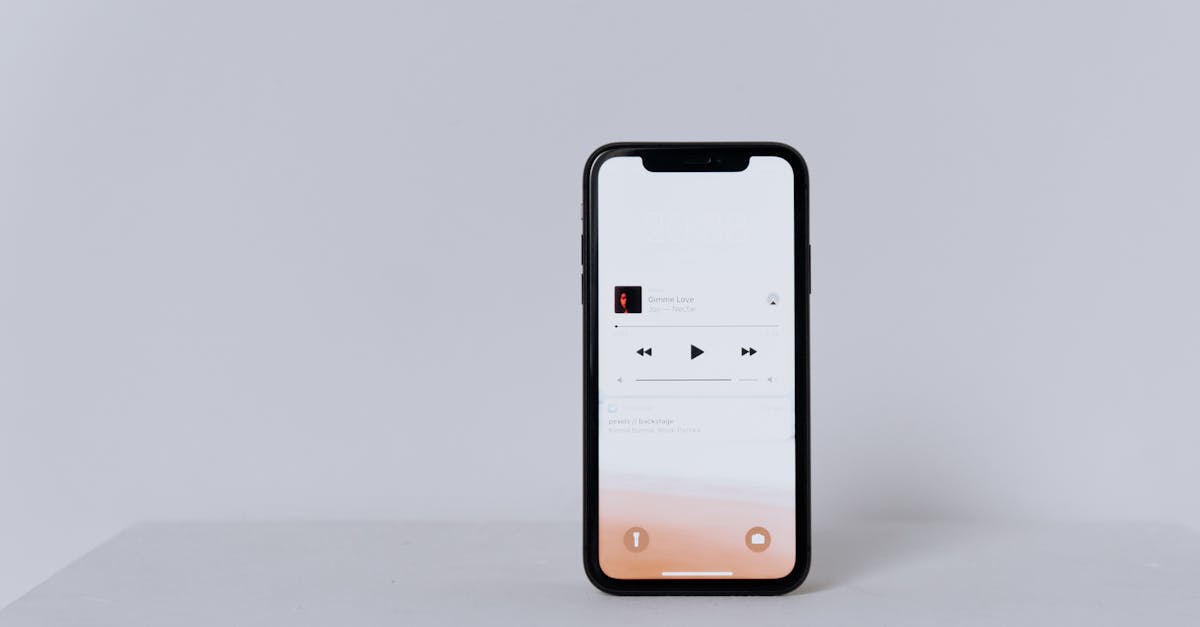
Imagine this: you’re in a meeting, and suddenly your phone blares out your favorite pop anthem instead of the usual boring ringtone. Heads turn, eyebrows raise, and just like that, you’ve become the life of the party—at least for a moment. Making a song your ringtone on an iPhone isn’t just about personalization; it’s about making a statement.
Table of Contents
ToggleUnderstanding Ringtones on iPhone
Ringtones on iPhone serve as personalized alerts for incoming calls and notifications. Users can select from default options or customize their devices by adding songs as ringtones. Apple provides various ways to achieve this, ensuring flexibility in how users express themselves.
Selecting a favorite song as a ringtone adds a personal touch to the device. Users often feel more connected to their phone when it rings with a song they love. The iPhone supports common audio formats like MP3 and AAC, making it simpler to transform any song into a ringtone.
Creating a custom ringtone involves a few steps. First, purchasing or acquiring the song from a reputable source is essential. Then, using iTunes or the GarageBand app, users can trim the song to a desired length, often limiting it to 30 seconds. Transferring the edited audio back to the device allows for usage as a ringtone.
Setting the new ringtone is just as easy. Within the Settings app, users navigate to Sounds & Haptics, where they can select the ringtone option. A list of available ringtones, including the newly created song, appears for selection. After choosing the desired tone, the personalized touch is complete.
Keeping this process in mind helps simplify the task of customizing ringtones. It adds joy and individuality to communication every time the phone rings. Many users appreciate the opportunity to infuse personal meaning into what might otherwise feel like a generic alert.
Can You Make a Song Your Ringtone on iPhone?
Yes, users can set a song as their ringtone on an iPhone. Personalizing ringtones adds character and fun to communication.
Supported Formats
iPhone supports specific audio formats for ringtones. These include AAC, MP3, and M4A formats. Choosing one of these formats ensures compatibility with the device. Each format delivers good sound quality and can be easily edited.
Length Requirements
Ringtones must meet certain length requirements. A custom ringtone should last no longer than 30 seconds. Keeping the clip short makes it suitable for incoming calls. Trimming the song properly helps in achieving this length, ensuring a smooth playback experience.
Method 1: Using iTunes
Creating a custom ringtone using iTunes is straightforward. This method allows users to personalize their iPhone alerts easily.
Syncing Your Music
First, users must have the song available in their iTunes library. They can buy music from the iTunes Store or import existing files. Select the desired song from the library, then right-click and choose “Song Info.” Under the “Options” tab, set the start and stop times to create a 30-second clip. After adjusting the time, click “OK” to save those settings. Next, right-click on the song again and select “Create AAC Version.” This generates a new file, which appears in the library after completion.
Setting the Ringtone
To set the newly created ringtone, first locate the 30-second clip in the iTunes library. Right-click on it and choose “Show in Finder” for Mac or “Show in Windows Explorer” for Windows. Change the file extension from .m4a to .m4r, which designates it as a ringtone file. After that, open iTunes, and drag the .m4r file back into the library. Connect the iPhone to the computer with a USB cable. Finally, sync the device, ensuring the new ringtone transfers successfully.
Method 2: Using GarageBand
GarageBand offers an effective way to create custom ringtones on an iPhone. Users can craft unique sounds and easily edit tracks for personalized alerts.
Creating a Custom Ringtone
To make a custom ringtone, users should start by opening GarageBand and selecting the “Audio Recorder” option. Import the desired song by dragging it into the project area. Users can then trim the track to 30 seconds, ensuring the selected segment fits perfectly for a ringtone. Adjust the start and end points until the desired section is ready. Once satisfied, adding effects and tweaking the sound enhances the final product, making it more enjoyable.
Exporting the Ringtone
After finalizing the ringtone, users must export it. Navigate to “My Songs” and tap on “Select,” then choose the project. Share the project by tapping the share icon and selecting “Ringtone.” Name the ringtone for easy identification and export it directly to the device. Once exported, the custom ringtone appears in the iPhone’s settings under sounds, ready for selection as a personalized alert tone.
Alternative Apps for Ringtones
Numerous apps offer alternatives for creating custom ringtones on an iPhone. These applications simplify the process and provide a wider selection of sounds.
- Ringtone Maker: This app enables users to create ringtones from songs stored on their devices. Users can easily trim tracks to 30 seconds and save them in compatible formats.
- Zedge: Known for its extensive library, Zedge provides ringtones along with wallpapers and notification sounds. Searching through its vast collection allows users to find something unique and fitting for personal alerts.
- Ringtone designer: This app offers an intuitive interface for ringtone customization. Users can access various sound effects and songs, trimming them for an ideal ringtone length.
- Audiko: Audiko enables users to turn their favorite songs into ringtones seamlessly. This app features an online platform to create ringtones, making it easier to sync them to the iPhone.
- ** GarageBand**: Besides creating music, GarageBand can customize ringtones. Users import tracks, trim them down, and add effects before exporting directly to the iPhone.
These apps enhance personalization options beyond iTunes and GarageBand and allow users to explore creativity. Searching for ringtones becomes more fun and engaging with these tools, all while maintaining compatibility with iPhone settings. Adjusting alerts and making calls more memorable becomes straightforward, providing additional opportunities for self-expression.
Personalizing ringtones on an iPhone can truly enhance the user experience. By selecting a favorite song as a ringtone, individuals can express their personality and bring a unique touch to their incoming calls. The methods discussed, whether through iTunes, GarageBand, or various apps, make it easy to create custom ringtones that resonate with personal taste.
This customization not only adds joy to communication but also allows for memorable moments in everyday life. With the ability to trim songs and ensure compatibility, users can confidently transform their iPhones into a reflection of their musical preferences. Embracing this feature can make each alert a delightful reminder of what truly matters to them.